
Resize Image to MB
Have you ever tried uploading a photo to a government website, college admission portal, or job application form, only to discover that the image is too large? It happens quite often. You select your picture, click the upload button, and suddenly see a message saying that the file exceeds the allowed size.
Some websites accept images up to 1MB, while others require 2MB, 5MB, or even 10MB. Finding the right balance between image size and quality can sometimes be frustrating, especially when you need to submit a photograph quickly.
That’s where Bagofa can help. With Bagofa’s free online image tools, you can resize and compress pictures to make them suitable for different upload requirements. Whether you’re preparing a passport photo, an application document, or an image for your website, you can work with your pictures directly from your browser.
No complicated steps are necessary. Just choose the right image tool, adjust the settings, and prepare your picture according to your requirements.
Why Do You Need to Resize an Image to MB?
Image file size might not seem important until a website refuses to accept your picture. Many online platforms have strict upload limits, and even a good-quality photograph can exceed those limits.
For example, imagine taking a photo with your smartphone. The picture looks perfectly fine, but its file size is 6MB. If an application portal only accepts images up to 2MB, you’ll need to reduce the file size before submitting it.
Here are some common situations where resizing or compressing images is useful:
- Government applications: Prepare photographs and scanned images for online forms.
- College admissions: Meet photo and document upload requirements.
- Job applications: Make sure your profile picture meets the permitted file size.
- Website publishing: Optimize images to help pages load efficiently.
- Email attachments: Make large photographs easier to share.
- Social media: Prepare images for different platforms.
- Online registrations: Adjust pictures to meet specific upload restrictions.
The important thing is to check the website’s exact requirements before processing your image.
How to Resize an Image to MB Online with Bagofa
You don’t need to be an image editing expert to reduce a picture’s file size. Bagofa makes everyday image-related tasks straightforward.
Follow these steps to prepare your image:
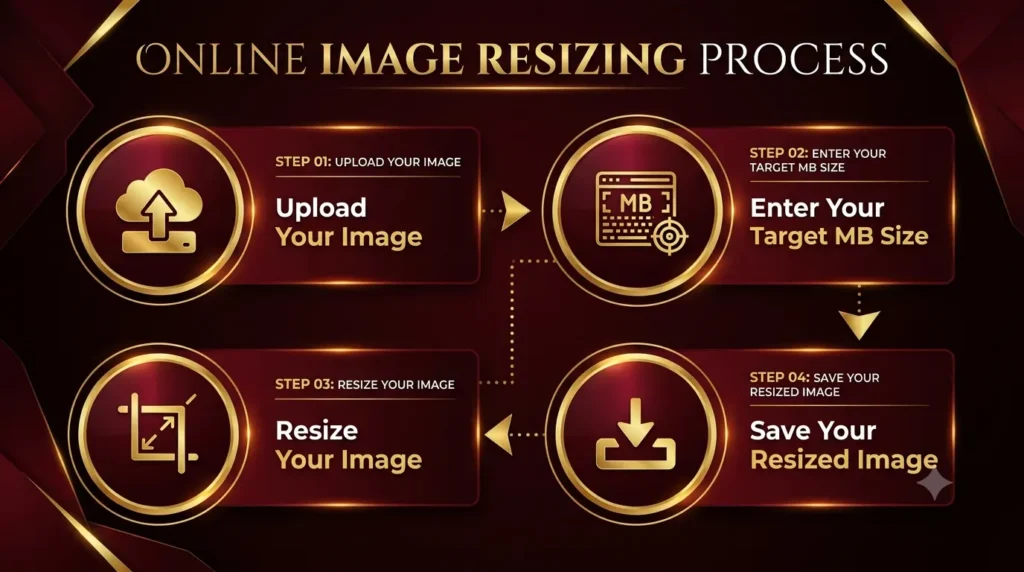
- Step 1: Open Bagofa
Visit Bagofa.com and explore the available image tools. Choose an image compressor or another suitable tool based on your requirements. - Step 2: Select Your Image
Choose the photograph or picture you want to resize. You can work with commonly used formats such as JPG, JPEG, PNG, and WebP, depending on the selected tool. - Step 3: Set Your Requirements
Decide how much you want to reduce the image size. For example, you might need to prepare a picture for a 1MB, 2MB, or 5MB upload limit. - Step 4: Adjust the Image Settings
Change the available compression or image dimension settings. Try to maintain a balance between file size and visual quality. - Step 5: Process and Check Your Image
Start the image processing and check the resulting file size. If the picture is still above your required limit, you may need to adjust the settings further.
That’s it! Your image is ready to be used for your online application, website, email, or other purpose.
How Does Resizing an Image to MB Work?
One thing worth understanding is that image dimensions and image file size are not the same.
Image dimensions are measured in pixels, such as 1920 × 1080 or 1200 × 800. File size, on the other hand, is measured in KB or MB.
When you reduce an image’s file size, the processing method may change the image dimensions, compression level, or the amount of data stored in the file.
For example, consider a photograph that is originally 6MB. Reducing its dimensions and applying suitable compression may bring its size closer to 2MB.
However, the final result depends on several factors:
- Original image dimensions.
- Image format (JPG, PNG, WebP, etc.).
- Amount of detail and colours in the picture.
- Selected compression level.
- Image quality settings.
If you only need a smaller file, compression may be sufficient. If a website also specifies exact pixel dimensions, you’ll need to resize the image accordingly.
Image Size in MB: What Should You Choose?
Different websites have different image upload restrictions. The following examples show some common file size targets.
| Required Image Size | Common Uses |
|---|---|
| 1MB | Online applications and profile photographs |
| 2MB | College forms and registration portals |
| 5MB | General photo submissions |
| 10MB | Higher-quality photograph uploads |
| 500KB | Websites and smaller online forms |
| 200KB | Government and job application images |
These are examples, not universal requirements. Always follow the instructions provided by the website where you’re uploading your image.
Tips for Reducing Image Size Without Losing Too Much Quality
Reducing an image’s size doesn’t necessarily mean making it look blurry or unattractive. A few small adjustments can make a noticeable difference.
1. Choose the Right Image Format
JPG is generally suitable for photographs, while PNG is useful for graphics and transparent backgrounds. WebP can also provide efficient compression for web images.
2. Avoid Unnecessarily Large Dimensions
If you’re uploading a small profile photograph, you probably don’t need a very high-resolution image. Choose dimensions that match the intended use.
3. Don’t Overcompress Your Pictures
Very aggressive compression can introduce visible artefacts, blur, and loss of detail. Try different settings until you find a suitable result.
4. Check the Final File Size
Never assume that your picture meets the required limit just because you selected a particular compression setting. Check the processed file before uploading it.
Supported Image Formats
Different image formats are designed for different purposes. Here are some commonly used formats you may encounter:
- JPG/JPEG: Popular for photographs, personal pictures, and online applications.
- PNG: Useful for logos, graphics, screenshots, and transparent images.
- WebP: Designed to provide efficient image compression for websites.
- HEIC: Commonly used for photographs captured on Apple devices.
The availability of each format depends on the Bagofa tool you choose.
Related Image Tools from Bagofa
Reducing image size is just one part of preparing pictures for everyday online tasks. Bagofa offers several other useful tools that can help you manage your images.
Explore Bagofa’s free online image and PDF tools to find the right solution for your next task.
Frequently Asked Questions (FAQs)
1. How can I resize an image to MB online for free?
Visit Bagofa, choose a suitable image compression or resizing tool, upload your picture, adjust the available settings, and process the image. Check the final file size before using it.
2. Can I resize an image to 1MB?
Yes. You can use image compression to bring a picture closer to a 1MB target. The result depends on the original image and its format.
3. How do I reduce an image to 2MB?
Upload your picture to an image compression tool and adjust its compression settings. Check the processed file to confirm whether it meets the 2MB requirement.
4. Can I reduce a 5MB image to 1MB?
Yes. It is often possible to reduce a 5MB photograph to approximately 1MB by adjusting its dimensions and compression settings. However, the exact result depends on the image.
5. Does resizing an image reduce its quality?
It can. Reducing dimensions or applying strong compression may affect image clarity. Moderate settings usually provide a better balance.
6. Which image formats can I resize?
Common image formats include JPG, JPEG, PNG, and WebP. Some tools also support HEIC and other formats.
7. Can I resize images for government applications?
Yes. You can prepare photographs for government application portals by adjusting their file size and dimensions according to the portal’s instructions.
8. Is Bagofa free to use?
Yes. Bagofa provides free online image and PDF tools for common image resizing, compression, and file conversion tasks.
9. Can I resize an image on my mobile phone?
Yes. You can open Bagofa in a compatible mobile browser and use its available image tools.
10. What is the difference between MB and KB?
Both are units used to measure digital file size. One megabyte (MB) is approximately 1,024 kilobytes (KB) in common binary-based calculations.
11. Can I reduce a PNG image to 1MB?
Yes. PNG images can be optimized to reduce their file size. The result depends on the image dimensions, transparency, and visual content.
12. How can I reduce image size without losing quality?
Use moderate compression, select suitable dimensions, and avoid unnecessary quality reduction. Some quality loss may still occur depending on the processing method.
13. Can I resize multiple images at once?
Yes. You can explore Bagofa Bulk Image Resizer to resize multiple pictures more conveniently.
14. Does resizing an image change its pixel dimensions?
It can. Image resizing changes the width and height in pixels, while compression can reduce file size without necessarily changing the dimensions.
15. Can I resize images for email attachments?
Yes. Compressing photographs makes them smaller and easier to attach to emails, particularly when attachment size restrictions apply.
16. Why is my image still larger than the required MB limit?
Your image may contain detailed visual information, large dimensions, or a format that produces a bigger file. Try adjusting the compression level or reducing its dimensions.
17. Can converting JPG to WebP reduce image size?
It can. WebP may produce a smaller file than JPG in certain situations, although the final result depends on the image and compression settings.
18. Is Bagofa suitable for beginners?
Yes. Bagofa offers straightforward online tools that are useful for beginners, students, professionals, and anyone who regularly works with images.
19. Can I resize images for websites?
Yes. Resizing and compressing pictures can help reduce page weight and improve website loading performance.
20. Is it safe to use Bagofa for image processing?
Bagofa states that uploaded files are automatically deleted from its servers after 60 minutes. As a general precaution, avoid uploading highly sensitive or confidential documents unless necessary.