
Resize Image to KB
Preview
Have you ever tried uploading a photo to an online form, only to find that the file is too large? It happens more often than you might think. A government application, college admission form, job portal, or website may accept your image only when it meets a particular file-size limit.
With Bagofa's Resize Image to KB tool, you can prepare images for specific size requirements, including 20KB, 50KB, 100KB, 200KB, and 500KB. Choose your image, enter the target size, and adjust the settings to get a file that suits your needs.
Whether you're preparing a passport photograph, signature, profile picture, or website image, the goal is simple: create a smaller file without making the image unnecessarily blurry.
Why use Bagofa?
- Free and straightforward online image resizing.
- Convenient target sizes for common upload requirements.
- Support for popular formats such as JPG, JPEG, PNG, and WebP.
- A responsive experience for mobile phones, tablets, and computers.
- Browser-based image processing for supported operations.
Resize Images to Popular KB Sizes
Different websites have different upload rules. One application might require a photograph under 20KB, while another may allow 200KB or 500KB. Before resizing, check the exact file-size limit and image dimensions specified by the website.
| Target size | Common uses |
|---|---|
| 20KB | Forms with very strict image-size limits |
| 50KB | Small application photos and signatures |
| 100KB | Online photographs and profile pictures |
| 200KB | Documents, portals, and website images |
| 500KB | Larger photographs and images needing more detail |
These are target file sizes, not universal requirements. Always follow the instructions of the website where you plan to upload your image.
How to Resize an Image to KB Online
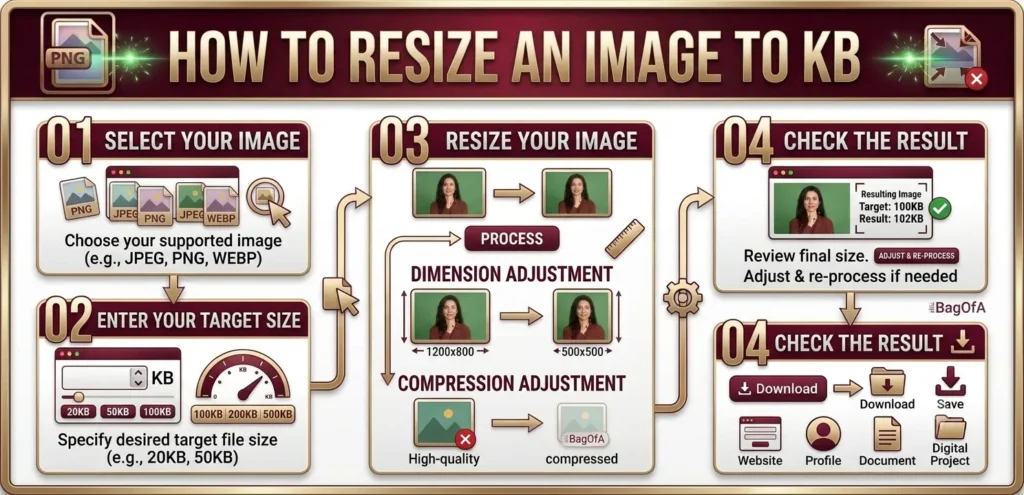
You don't need to understand complicated image settings to get started. Follow these simple steps to prepare your image.
1. Select Your Image
Open the Bagofa Resize Image to KB tool and choose the photograph or graphic you want to resize. Start with the original image whenever possible, as repeatedly compressing the same file may reduce its quality.
2. Enter the Required File Size
Check the upload instructions and enter the target size in KB. For example, if your application allows a maximum of 100KB, choose a suitable target below that limit to leave a little room for file-size differences.
3. Adjust the Image Settings
If the image is too large, you may need to adjust its dimensions, compression quality, or output format. Reducing unnecessary pixel dimensions can make a considerable difference, especially when the original photograph is very large.
4. Preview the Result
Check the resulting file size and look closely at the image. Faces, signatures, small text, and other important details should remain clear enough for their intended purpose.
5. Save Your Resized Image
Once the result meets your requirements, save the image and check that it has the correct format, dimensions, and file size before submitting it.
Helpful tip: If your image is still larger than the permitted limit, try a slightly smaller target size or reduce the dimensions gradually.
What Does KB Mean in Image Size?
KB stands for kilobyte, a unit used to measure digital file size. When an online application says that a photograph must be under 100KB, it is referring to how much storage space the image occupies.
Pixels describe something different: the width and height of an image. For example, a picture measuring 1200 × 800 pixels may have a file size of 150KB, while another picture with the same dimensions could be considerably larger or smaller.
The final file size depends on several factors, including:
- Image width and height.
- File format, such as JPG, PNG, or WebP.
- Compression method and quality settings.
- Colours, textures, and fine details in the image.
- Metadata and other information stored in the file.
This is why changing the dimensions alone does not always produce an exact KB size.
Which Image Format Should You Choose?
Choosing the right format can help you balance file size, clarity, and compatibility.
JPG or JPEG
JPG is a practical choice for photographs, portraits, passport pictures, and everyday images. It uses lossy compression, which reduces file size by removing some image information. Higher compression can make a photograph smaller, but excessive compression may introduce visible artefacts.
PNG
PNG is commonly used for logos, screenshots, icons, illustrations, and graphics that need transparency. It uses lossless compression, so reducing a detailed PNG to a very small size can be more difficult than compressing a photograph as JPG.
WebP
WebP is designed for efficient image delivery on websites. It supports lossy and lossless compression, as well as transparency. It can be useful for web graphics and photographs, although you should confirm that your destination accepts this format.
If a form specifically requires JPG or JPEG, use that format even if another format produces a smaller file.
How to Reduce Image Size Without Losing Too Much Quality
Getting an image below a strict file-size limit can take a little experimentation. The trick is to avoid removing more image detail than necessary.
Start with the right dimensions. If your original photograph is 4000 pixels wide but the form requires a small profile picture, reducing the dimensions may be more effective than applying aggressive compression alone.
Choose a suitable format. JPG is often useful for photographs, while PNG is a good option for graphics and transparency. WebP can be efficient when supported by the destination.
Keep an eye on image clarity. A file that meets the size limit but makes a face unrecognizable or a signature difficult to read may not be suitable for submission.
Leave a small margin below the limit. If the maximum allowed size is 100KB, targeting a little below 100KB can help avoid problems caused by different file-size calculations.
Keep the original file. Save a copy before making substantial changes. This gives you the option to start again if the resized result looks poor.
Resize JPG, PNG, and WebP Images to KB
Resize JPG to a Specific KB Size
JPG photographs are common in online forms and applications. You can prepare a JPG image toward 20KB, 50KB, 100KB, 200KB, or 500KB, depending on the permitted file size. If the image becomes blurry, try adjusting its dimensions or using a less aggressive compression setting.
Resize PNG to a Specific KB Size
PNG is useful for graphics, icons, screenshots, and transparent images. Because PNG uses lossless compression, reaching a very small target may require reducing the dimensions or choosing a different format when transparency is not needed.
Resize WebP to a Specific KB Size
WebP can provide efficient compression for website graphics and photographs. Before converting or resizing an image, make sure the receiving website supports WebP. For official forms that require JPG, use a compatible output format instead.
Image File Size vs. Image Dimensions
Imagine you have two photographs. One is 2000 × 1500 pixels and occupies 800KB. Another is 800 × 600 pixels and occupies 100KB. The second image is smaller in both dimensions and file size, but those numbers alone do not tell you which picture looks better.
Here is the difference:
- KB: Measures the amount of digital storage used by the image file.
- Pixels: Describe the image's width and height.
- Compression: Determines how image information is encoded and how much detail may be discarded.
- Image quality: Describes how clear and suitable the result looks for its intended use.
If you need specific pixel dimensions rather than a particular file size, try Bagofa's Image Resizer. It is useful when a website asks for exact width and height measurements.
Who Can Benefit from a KB Image Resizer?
A tool for resizing images to a specific KB size can be useful for many everyday tasks.
- Students: Prepare images for admission forms, examinations, and scholarships.
- Job applicants: Adjust photographs and signatures for recruitment portals.
- Professionals: Prepare profile pictures and images for online submissions.
- Website owners: Optimize images for pages, blogs, and online stores.
- Online sellers: Prepare product photographs for marketplace requirements.
- Content creators: Reduce image file sizes before publishing digital content.
The important thing is to match the output to the actual requirement rather than choosing the smallest possible file every time.
Frequently Asked Questions
1. How do I resize an image to a specific KB size?
Open Bagofa's Resize Image to KB tool, select your image, enter the desired target size, adjust the available settings, and check the result.
2. Can I resize an image to 20KB?
Yes. Use the Compress Image to 20KB tool to prepare an image for a 20KB target. The final result depends on the original image and its settings.
3. How can I resize a photo to 50KB?
Select your photograph and use the 50KB image tool. Check the resulting image to make sure it remains clear enough for your intended use.
4. How do I resize an image to 100KB?
Use Bagofa's Compress Image to 100KB tool and adjust the settings as needed to meet the file-size limit.
5. Can I resize JPG images to 100KB?
Yes. JPG images can be compressed toward a 100KB target. If the image becomes blurry, try reducing its dimensions or changing the compression settings.
6. Can I resize PNG images to 100KB?
Yes. However, detailed PNG graphics may require dimension changes or a different format to reach a small target while preserving a useful appearance.
7. Can I resize WebP images to a specific KB size?
Yes, provided the tool supports your image and desired output. Always confirm that the resulting format is accepted by the destination website.
8. Will resizing an image to KB change its dimensions?
It may. Depending on the original file and the target size, you may need to adjust the image dimensions as well as its compression.
9. Why is my image not exactly the target KB size?
File size varies with image content, dimensions, format, and compression. Some images may not reach a particular target without further adjustments.
10. Which image format is best for a small file size?
There is no single best format for every image. JPG and WebP are often suitable for photographs, while PNG is useful for graphics that require lossless compression or transparency.
11. Is KB the same as pixels?
No. KB measures file size, whereas pixels measure image dimensions. A large image in pixels can still have a relatively small file size if it is compressed efficiently.
12. Can I use a resized image for an online application?
Yes, provided the resulting image meets the application's file-size, format, dimension, and other requirements.
13. Can I resize an image on my mobile phone?
Yes. You can access Bagofa through a compatible mobile browser and use the available image resizing controls.
14. Will compressing an image always reduce its quality?
Not necessarily. The effect depends on the format and settings used. Lossy compression can reduce detail, while lossless compression preserves the original image information but may not achieve very small file sizes.
15. Can I resize an image without changing its aspect ratio?
Yes, when the tool offers an aspect-ratio option. Keeping the original proportions helps prevent the image from looking stretched or distorted.
16. Should I target exactly the maximum file size?
It is generally sensible to aim slightly below the maximum permitted size. This provides a margin and can help prevent upload rejection.
17. How do I reduce the size of a large photograph?
Start by checking its dimensions. If they are larger than necessary, reduce them and then adjust compression to achieve a suitable balance between file size and clarity.
18. Can I compress an image for a government form?
Yes. A KB image resizer can help prepare the file, but you must follow the relevant department's official instructions for dimensions, format, file size, and image appearance.
19. What should I do if my resized signature is difficult to read?
Try a less aggressive compression setting, preserve sufficient dimensions, and avoid unnecessary cropping. A signature should remain clear and recognizable.
20. Is Bagofa's Resize Image to KB tool free?
Bagofa offers free online image tools for everyday image-processing tasks. Visit the Resize Image to KB page to use the available options.
Explore More Image Tools on Bagofa
Once your image meets its file-size requirement, you may need to make additional changes. These related tools can help you prepare the final file.
You can also browse the Bagofa image and PDF tools directory to find more tools for common file tasks.