
Image Resizer
Drop your images here or

Have a photo that looks too large, doesn’t fit a website, or needs specific dimensions for an online application? Bagofa Image Resizer helps you change image width and height without making the process complicated. Whether you’re preparing a profile picture, updating website graphics, or getting a photograph ready for a form, you can choose dimensions that suit your needs.
Sometimes, a photo straight from your phone is much larger than necessary. Other times, an application asks for a particular pixel size, and your original image simply doesn’t match. Instead of struggling with complicated editing steps, you can use the Bagofa Image Resizer to prepare images for different digital purposes.
What Is an Image Resizer?
An image resizer is an online tool that changes the dimensions of a picture, usually measured in pixels. It allows you to adjust an image’s width and height to fit a particular requirement.
For example, imagine you’ve taken a photograph measuring 3000 × 2000 pixels, but your website requires an image measuring 1200 × 800 pixels. Resizing lets you create a version with the required dimensions.
An image resizer can be helpful for:
- Preparing photographs for online application forms
- Creating profile pictures and account images
- Adjusting website banners and blog images
- Resizing product photographs for online stores
- Preparing school, college, and office documents
- Making images fit social media layouts
- Creating graphics for presentations and digital portfolios
The important thing is to choose dimensions that match your intended use rather than simply making every image smaller.
Resize Images Online for Free
With Bagofa, you can adjust image dimensions according to your requirements. Whether you need a square picture, a landscape image, or a specific pixel size, choosing the correct dimensions helps your image fit its intended space.
Suppose you’re applying for a job and the application asks for a photograph with specific dimensions. Your existing picture might look perfectly fine but still fail to meet the size requirement. Resizing it can help you prepare a more suitable version.
The same applies to website owners. A large photograph may occupy more space than a page layout requires. Creating an appropriately sized version can make it easier to manage images across your website.
Before starting, check the destination’s requirements. Some websites specify only dimensions, while others also set limits for file size and format.
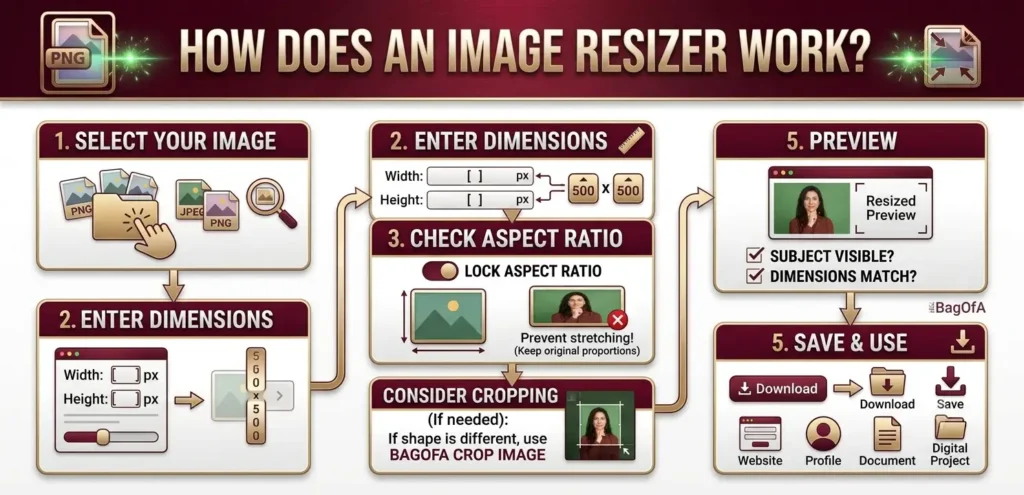
How Does an Image Resizer Work?
Resizing an image is straightforward when you know the dimensions you need.
-
Select Your Image
Choose the photograph or graphic you want to resize. A clear original image generally gives you more flexibility when creating a smaller version.
-
Enter the Required Dimensions
Specify the desired width and height in pixels. For example, you might need 500 × 500 pixels for a square image or 1200 × 630 pixels for a landscape graphic.
-
Check the Aspect Ratio
The aspect ratio describes the relationship between an image’s width and height. Keeping the original proportions helps prevent faces, objects, and other details from looking stretched.
If a website requires a different shape, consider using Bagofa Crop Image to adjust the composition.
-
Preview the Resized Image
Take a moment to check the result. Make sure the main subject remains visible, the image looks clear, and the dimensions match your requirements.
-
Save and Use Your Image
Once you’ve checked the result, use the resized image for your intended purpose. This could be an online form, a website, a document, a profile, or a digital project.
Image Resizing Tips for Better Results
A few small checks can save you from having to edit the same image repeatedly.
- Check the exact dimensions: Follow the width and height requested by the website or application.
- Keep proportions in mind: Avoid stretching a photo just to force it into a different shape.
- Start with a good-quality image: A sharp original usually produces better results than a blurry one.
- Avoid excessive enlargement: Making a small image much larger can reveal pixelation or softness.
- Check the file format: Some platforms accept JPG, while others require PNG or another format.
- Review the file-size limit: Correct dimensions don’t automatically mean the file is small enough to upload.
- Preview before submitting: Check that faces, signatures, text, and other important details remain visible.
Image Resizing vs. Image Compression
These two tasks are often confused, but they solve different problems.
Image resizing changes the width and height of an image. Image compression reduces the amount of storage space the image occupies, usually measured in KB or MB.
For example, you might resize a photograph to 800 × 600 pixels and then compress it to meet a 100 KB upload limit. If you need a smaller file, try the Bagofa Image Compressor.
Related Image Tools on Bagofa
Need to do more than resize a single picture? Explore these useful tools.
Explore more free online tools at Bagofa.com to find image resizing, compression, cropping, and conversion options for your everyday needs.
Related Image Conversion Tools
Sometimes an image has the right dimensions but the wrong file format. These Bagofa tools can help you prepare it for different applications.
- JPG to PDF Converter — Convert pictures into PDF documents.
- JPG to PNG Converter — Convert JPG images to PNG.
- JPG to WebP Converter — Create WebP images for supported web workflows.
- PNG to JPG Converter — Convert PNG images to JPG.
- PNG to WebP Converter — Convert PNG graphics to WebP.
- PNG to PDF Converter — Prepare PNG images as PDF documents.
- WebP to JPG Converter — Convert WebP images to JPG.
- WebP to PNG Converter — Convert WebP images to PNG.
- WebP to PDF Converter — Turn supported WebP images into PDF documents.
- GIF to JPG Converter — Convert GIF images to JPG.
- GIF to PNG Converter — Convert GIF images to PNG.
- JFIF to JPG Converter — Convert JFIF images to JPG.
- JFIF to PNG Converter — Convert JFIF images to PNG.
- HEIC to JPG Converter — Convert compatible HEIC photos to JPG.
- HEIC to PNG Converter — Convert HEIC images to PNG.
- SVG to PNG Converter — Convert SVG graphics to PNG.
- TIFF to JPG Converter — Convert TIFF images to JPG.
- TIFF to PNG Converter — Convert TIFF images to PNG.
Frequently Asked Questions
1. What is an image resizer?
An image resizer is a tool that changes the width and height of a picture, usually measured in pixels. It helps prepare images for websites, applications, documents, and social media.
2. Can I resize an image online for free?
Yes. Bagofa provides an online image resizing tool for common image dimension requirements.
3. Can I enter custom image dimensions?
Yes. You can use the width and height required for your intended use, provided those dimensions are supported by the tool.
4. Does resizing reduce image quality?
It can. Reducing dimensions often produces a suitable smaller image, while substantial enlargement may make an image look blurry or pixelated.
5. What is the difference between image dimensions and file size?
Dimensions describe the width and height of an image in pixels. File size describes how much storage it occupies, typically measured in KB or MB.
6. Can I resize an image for an online application?
Yes. Resizing can help you match the required pixel dimensions. Check the application’s additional rules for file size, format, and other photo specifications.
7. Can I resize a photo for a website?
Yes. You can prepare images for website banners, thumbnails, product listings, blog posts, and other layouts by selecting suitable dimensions.
8. Will resizing make my image file smaller?
Reducing an image’s dimensions often reduces its file size, but the result depends on the image format and compression settings. Use an image compressor if you have a specific KB or MB target.
9. Can I resize an image without stretching it?
Yes. Keep the original aspect ratio whenever possible. If you need a different shape, cropping may be a better option than stretching.
10. Can I enlarge a small image?
You can increase its dimensions, but enlarging cannot guarantee additional detail. For the best result, begin with the highest-quality original available.